
Open WebUI is one of the easiest ways to make self-hosted language models feel usable for normal humans instead of only terminal goblins. You get a browser-based chat interface, user accounts, saved conversations, and a clean place to connect local or remote model backends without building your own app stack from scratch.
In this guide, you will deploy Open WebUI with Docker Compose, run Ollama alongside it in the same stack, pull a starter model, and verify that the web interface can actually answer a prompt before you move on to reverse proxying or bigger models.
Why self-host Open WebUI?
If you already like the idea of local or private AI tools, Open WebUI solves a practical problem: raw model runtimes are useful, but not always pleasant to hand to other people.
Running Open WebUI yourself gives you:
a simple browser interface for local models
persistent chat history and settings
a cleaner way to share access with a small team or household later
control over which models and providers you connect
a setup that stays on infrastructure you control
It is a strong fit for homelabs, private experiments, internal tools, and anyone who wants something friendlier than typing every model interaction into a shell.
Is a VPS a good fit for Open WebUI?
Sometimes yes, but with a very important caveat: Open WebUI is the easy part. Ollama and the model files are the expensive part.
A small VPS can host the web interface itself without much drama, but useful local models usually want more RAM, more CPU, and more disk than the UI container does.
As a rough planning guide:
the Open WebUI container is fairly lightweight
Ollama model storage grows quickly once you pull real models
CPU-only setups work, but responses can be slow
a practical first self-hosted model setup is usually more comfortable on a server with at least 8 GB RAM if you plan to run a small general-purpose model
If you mostly want the UI and plan to connect to a remote model provider later, the hardware bar is lower. If you want fully local inference on the same server, size the machine for the model, not the dashboard.
What you will need
Before you start, have these ready:
a Linux server or VPS
SSH access to that server
Docker installed and working
the Docker Compose plugin available as
docker composeabout 20 minutes
enough disk space for at least one model download
If you still need the basics first, use these guides before continuing:
How to Install Docker on Ubuntu and Run Your First Container
Docker Compose for Self-Hosted Apps: A Beginner-Friendly Guide
How this setup works
We are going to run two containers:
ollamafor the model runtime and model downloadsopen-webuifor the browser interface and app data
That keeps the setup beginner-friendly and maps closely to Open WebUI's documented Docker patterns. It also means later updates are straightforward because your app data and model data live in persistent Docker volumes instead of disappearing with the containers.
Step 1: Connect to your server
Use SSH from your local machine.
ssh your-user@your-server-ip
Replace your-user with your Linux username and your-server-ip with the server's public IP address.
If this is your first time using SSH on that machine, you may be asked to confirm the server fingerprint before logging in.
Step 2: Create a folder for the stack
Make a dedicated directory so the Compose file is easy to find later.
sudo mkdir -p /opt/open-webui
Give your regular user ownership of the directory.
sudo chown "$USER":"$USER" /opt/open-webui
Move into it.
cd /opt/open-webui
Step 3: Generate a secret key for Open WebUI
Open WebUI supports a WEBUI_SECRET_KEY value for session and application security. Generate one before you write the Compose file.
openssl rand -hex 32
Copy the output somewhere temporarily. You will paste it into the .env file in the next step.
Step 4: Create the .env file
This keeps the small set of changeable values out of the Compose file.
cat > .env <<'EOF'
WEBUI_SECRET_KEY=replace-with-your-random-secret
OLLAMA_BASE_URL=http://ollama:11434
OPEN_WEBUI_PORT=3000
EOF
Update replace-with-your-random-secret with the value you generated in the previous step.
What these values do
WEBUI_SECRET_KEYgives Open WebUI a stable secret instead of letting it rotate unpredictablyOLLAMA_BASE_URL=http://ollama:11434tells the web interface to talk to the Ollama container over Docker's internal networkOPEN_WEBUI_PORT=3000keeps the browser URL simple on the host
Step 5: Create the compose.yaml file
Now create the stack definition.
cat > compose.yaml <<'EOF'
services:
  ollama:
    image: ollama/ollama:latest
    container_name: ollama
    restart: unless-stopped
    volumes:
      - ollama:/root/.ollama

  open-webui:
    image: ghcr.io/open-webui/open-webui:main
    container_name: open-webui
    depends_on:
      - ollama
    restart: unless-stopped
    ports:
      - "${OPEN_WEBUI_PORT}:8080"
    environment:
      - OLLAMA_BASE_URL=${OLLAMA_BASE_URL}
      - WEBUI_SECRET_KEY=${WEBUI_SECRET_KEY}
    volumes:
      - open-webui:/app/backend/data

volumes:
  ollama:
  open-webui:
EOF
Why this file looks like this
ollama:/root/.ollama
This stores downloaded models in a persistent Docker volume so they survive container updates and restarts.
open-webui:/app/backend/data
This keeps Open WebUI's internal data, users, and chat-related state outside the container.
OLLAMA_BASE_URL=${OLLAMA_BASE_URL}
This points Open WebUI at the Ollama service running in the same Compose project.
"${OPEN_WEBUI_PORT}:8080"
Open WebUI listens on port 8080 inside the container, but we are exposing it as port 3000 on the host by default.
Step 6: Start the stack
Bring both containers up in the background.
docker compose up -d
The first run may take a minute because Docker needs to pull both images.
Step 7: Confirm both containers are running
Check the container state.
docker compose ps
You want to see both ollama and open-webui in a running state.
If one of them exits right away, check the logs.
docker compose logs --tail=100
Step 8: Open the web interface
Open the site in your browser.
http://your-server-ip:3000
On the first visit, Open WebUI should show its login or account-creation screen.
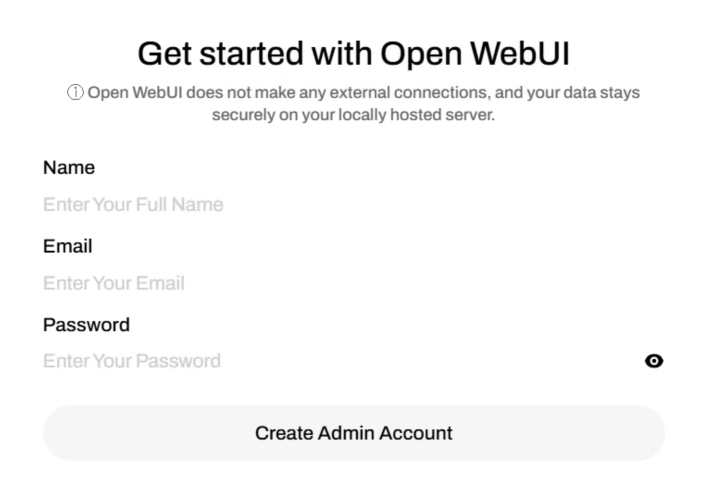
If the page does not load, confirm that:
the containers are running
your server firewall allows the chosen port
you are browsing to the server's actual public IP or domain
Step 9: Create the first account
Create your account in the web interface.
Use a real password you will remember, because this is the account you will use to manage the instance and test model access.
If you plan to keep this service exposed beyond a quick local test, avoid weak throwaway credentials. Browser-based AI tools have a bad habit of becoming unexpectedly permanent.
Step 10: Pull a starter model in Ollama
Open WebUI needs a model backend before it can answer anything. A small starter choice from Ollama's public library is llama3.2:3b.
Run the pull from your server shell:
docker exec ollama ollama pull llama3.2:3b
This can take a while depending on your server speed and network connection.
You can confirm the model is available with:
docker exec ollama ollama list
You should see llama3.2:3b in the list once the download finishes.
Step 11: Test a chat in Open WebUI
Go back to the web interface, choose the model you just pulled, and send a simple test prompt.
A good first test is something boring and obvious, like asking it to summarize what Open WebUI is or to list three backup tips for a Linux server. Boring tests are good because you are checking whether the plumbing works, not whether the model can write a novel.
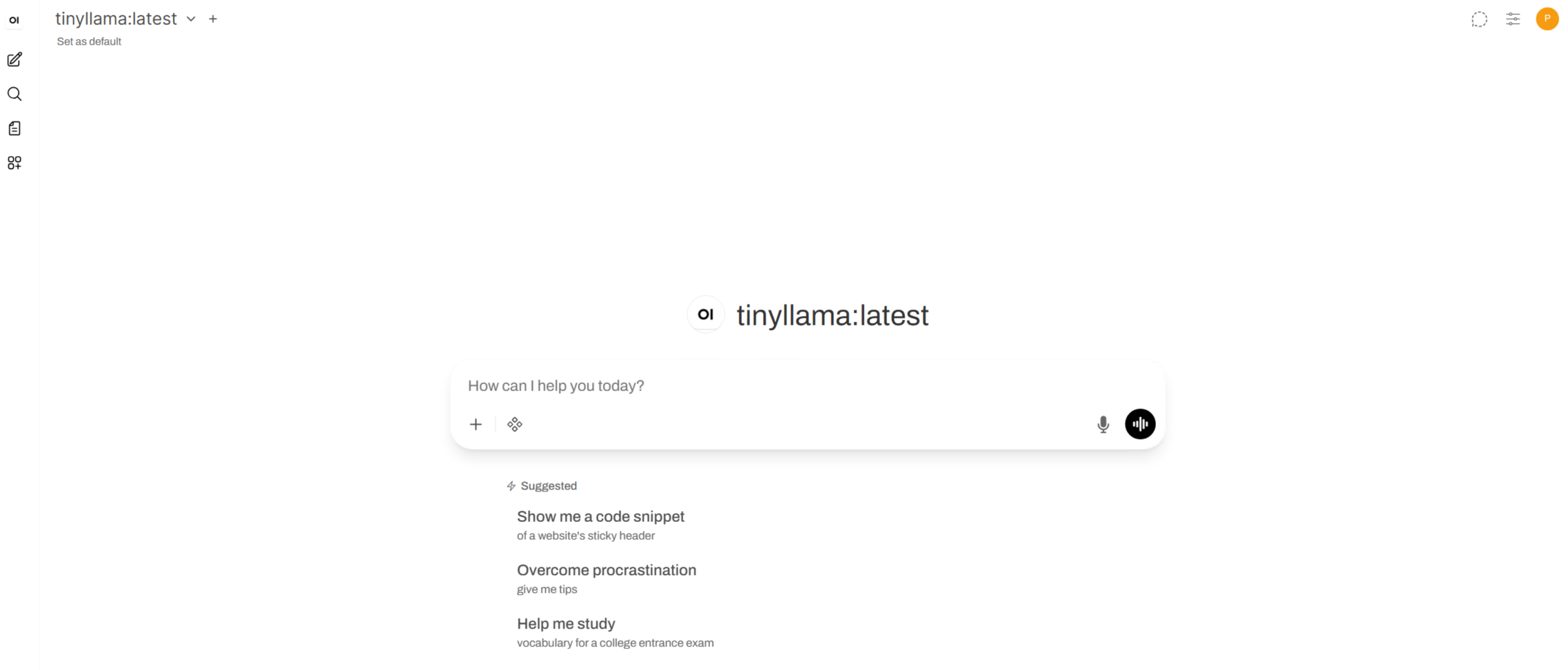
If the chat fails, the two most common causes are:
the model download has not finished yet
the
open-webuicontainer cannot reachhttp://ollama:11434
Optional: Put Open WebUI behind a domain and HTTPS
For a long-term setup, a real domain and HTTPS are nicer than a raw IP and port.
Helpful next steps:
If you later publish Open WebUI to the internet, treat it like a real application:
use HTTPS
keep authentication enabled
avoid exposing more ports than you need
update the stack regularly
Common problems and quick fixes
Open WebUI loads, but no models appear
Usually this means Ollama does not have any models downloaded yet.
Check the current list:
docker exec ollama ollama list
If the list is empty, pull a model and try again.
The open-webui container keeps restarting
Read the logs first.
docker compose logs --tail=100 open-webui
Look for environment variable mistakes, permission issues, or a bad Compose edit.
Ollama is running, but responses are painfully slow
That usually means the server is underpowered for the model you chose.
Try a smaller model first, or move Ollama to stronger hardware and keep Open WebUI as the front end.
The browser page will not open
Make sure the port is reachable from outside the server.
sudo ufw allow 3000/tcp
If you use a cloud firewall from your VPS provider, check that too.
How to update Open WebUI later
From the stack directory, pull the latest images.
docker compose pull
Recreate the containers with the new images.
docker compose up -d
That update flow preserves your Docker volumes, so your app data and downloaded models stay in place.
How to back it up
The simplest backup path is to back up the two persistent Docker volumes:
open-webuifor the application dataollamafor the downloaded models
If you are doing regular Docker host backups already, make sure those volumes are included. If you want a lighter backup, prioritize the Open WebUI data and be aware that models can be re-downloaded later if needed.
How to remove it
If you want to remove the stack but keep the data for later, stop and delete the containers.
docker compose down
If you also want to delete the persistent volumes and lose the saved models and app data, use:
docker compose down -v
That second command is the destructive one, so do not run it casually.
You’re done
You now have Open WebUI running in Docker Compose with an Ollama backend, persistent volumes for both services, and a browser-based interface you can actually test. From here, the smart next steps are adding HTTPS, experimenting with smaller and larger models, and deciding whether this instance should stay private to you or be shared more widely.